How To Transcribe A Video Fast With AI

Auto-captions feel free until you spend an hour fixing them. Here is why a purpose-built AI transcript beats YouTube's captions on accuracy, speed, and total time cost every time.
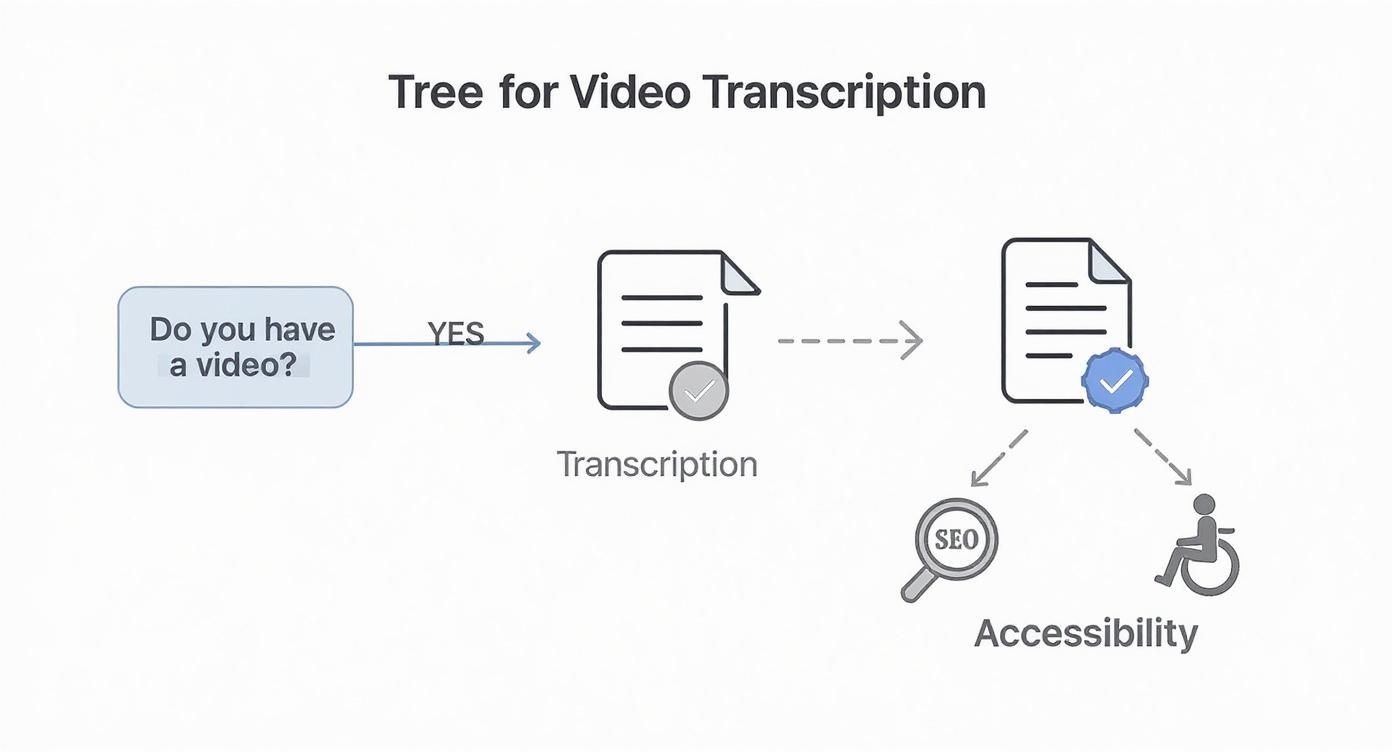
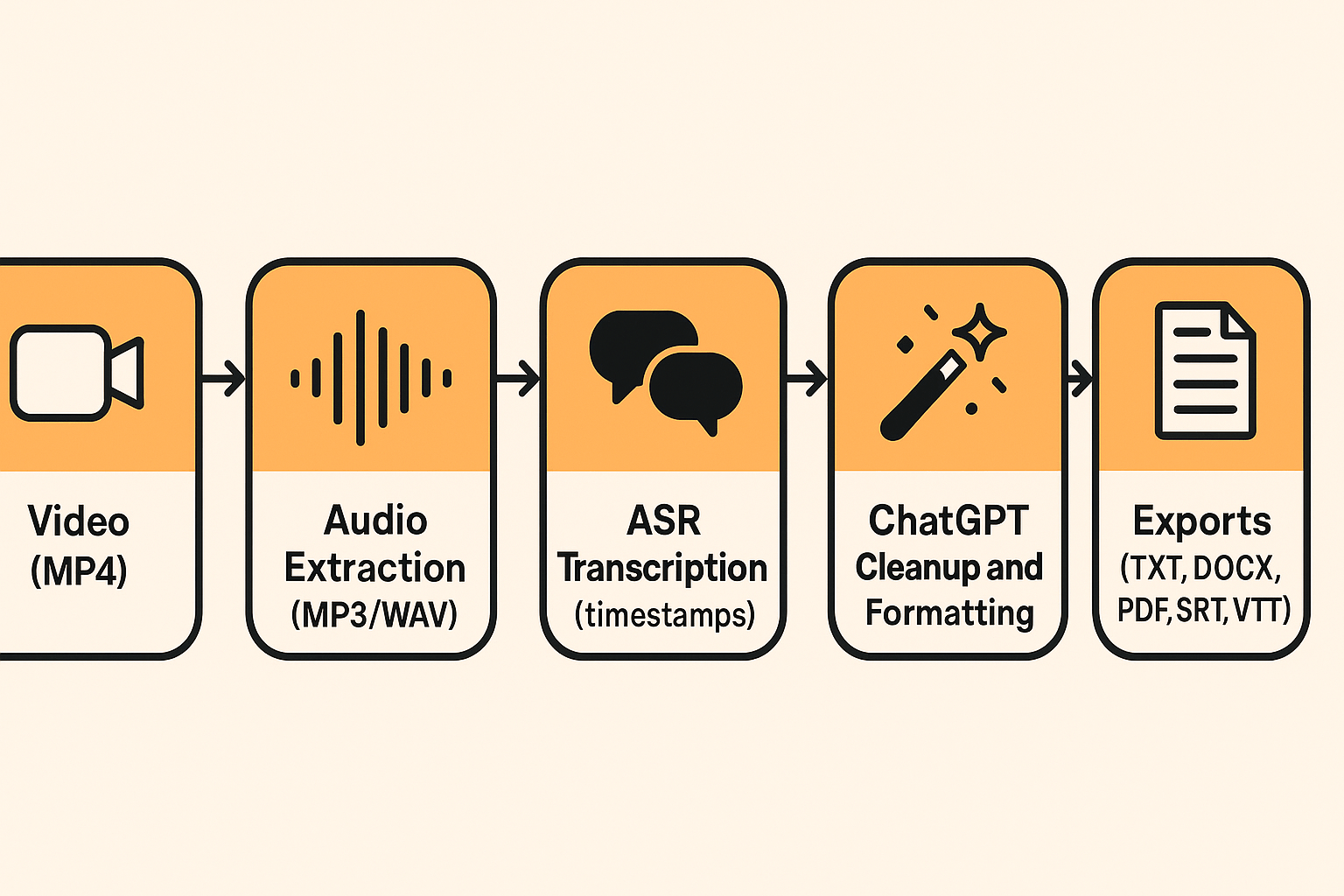
Transcribing a video means converting every spoken word in a recording into a written text file. The format that file takes matters immediately. A TXT file is plain text, useful for pasting into a document or feeding into another tool.
An SRT file pairs each line of dialogue with a timestamp so a video platform knows exactly when to display it. A VTT file does the same job but follows a slightly different standard used by web players. Choosing the wrong format at the end of a long cleanup session means starting the export step over; getting it right from the first upload saves that rework entirely.

YouTube's built-in captions, including the YouTube auto-captioning feature, are trained primarily on clean, studio-quality speech. The moment a recording includes a non-native accent, a fast talker, or industry-specific vocabulary, accuracy drops sharply. According to Gladia's 2026 benchmarking research, models trained on standard audio systematically mishandle accented speech, fast talkers, and domain-specific terms. A product name becomes a nonsense phrase, homophones swap in silently, and punctuation disappears, turning a clear spoken sentence into an unpunctuated run-on.
Correcting garbled automated captions can routinely take longer than retyping the recording from scratch. A 30-minute recording with moderate accent density or technical vocabulary can easily produce 60-plus minutes of line-by-line correction. At typical freelance editing rates, that session carries a real dollar cost even when no invoice changes hands. Cockatoo returns an accurate, punctuated, speaker-labeled transcript in the time it would have taken to scrub through the first two minutes of garbled auto-captions.
Key takeaways
-
Auto-captions feel free until you spend an hour fixing every misheard word, that cleanup time is the real price, and it rarely shows up on anyone's estimate.
-
AI transcription tools hit 90-95% accuracy on standard speech before you touch a single word, so the editing job is a targeted scan, not a rewrite.
-
The file format you export to matters as much as the transcript itself, picking the wrong one creates a second round of work that quietly cancels the time AI just saved.
-
A bare '98% accurate' claim on a pricing page tells you nothing: it doesn't say which language, what accent, or whether the audio was a clean studio recording or a phone call.
-
YouTube's built-in captions struggle with accents, technical terms, and overlapping speech, they're a second editing job, not a finished transcript.
-
Cockatoo closes the gap: upload any video file, get an editable transcript back with automatic punctuation, word-level timestamps, and speaker recognition that updates every line when you rename a speaker, accuracy backed by per-language FLEURS benchmarks across 30 languages, not a bare percentage.
What Are the Three Main Methods to Transcribe a Video
Choosing the right transcription method depends on understanding what each one actually costs in time, money, and effort. Three methods exist for turning a recorded video into usable text:
-
Typing it yourself
-
Uploading it to a dedicated AI transcription tool
-
Sending it to a professional human transcription service
Each one works. The real question is what each one costs you, and the cost that surprises people most is rarely the invoice.
1. AI-Powered Automatic Transcription - Fastest Path from Video to Usable Text

AI transcription tools are the fastest of the three methods, returning a working draft in minutes rather than hours. According to Brass Transcripts' 2024 analysis, AI tools deliver 90-95% accuracy on clean audio, which means a one-hour recording comes back with a handful of errors per page rather than a wall of garbled text.
90-95%
AI accuracy on clean audio
The failure mode is specific. Accuracy drops with heavy accents, overlapping speakers, and dense industry jargon. That gap is real. But the editing time left over is still shorter than any alternative, which is the metric that matters for a solo user with a deadline.
Cockatoo closes that gap in a way worth naming precisely. Upload your first file, audio or video, and a transcript comes back in minutes, with no setup and no credit card required. Word-level timestamps, automatic punctuation, and speaker recognition mean the draft that comes back is already structured. The editing pass is measured in minutes, not hours. When the goal is a video that can be published or shared internally, Cockatoo's subtitle export turns that same transcript into publish-ready captions without a separate tool or workflow step.
For teams or anyone working with foreign-language content, the same upload that produces a transcript can also feed Cockatoo's audio translation, so the path from raw recording to a captioned, translated file stays inside one workflow rather than three.
2. Manual Transcription Using a Media Player - Most Control, Highest Time Cost
Manual transcription follows a listen-pause-type-rewind loop, typically processing 5-10 seconds of audio at a time before stopping to catch up. The control is total. The time cost is brutal.
The average manual transcription time runs well above real-time; a single hour of recorded audio can consume most of a working day. Tools like Express Scribe (which supports foot-pedal control and variable playback speed) and OTranscribe (a free browser-based option with keyboard shortcuts for pause and rewind) reduce the friction slightly. They do not fix the underlying math. Most people who start with OTranscribe switch to an AI tool the moment they see how long the first file takes.
3. Professional Human Transcription Services - Highest Accuracy With a Wait and a Bill

Human transcription services deliver the highest accuracy, with professional output at 96% or above. Turnaround runs 24-48 hours on standard orders, with rush options available at a premium.
The failure mode here is cost and access. Services like GoTranscript charge per minute of audio, and that per-minute fee scales fast. A 90-minute recording that felt manageable at the start becomes a line item that needs budget approval, which the one person handling transcription for a small team rarely has. The accuracy is excellent. Getting sign-off to use it is the blocker.
Of the three methods, AI transcription wins on the metric that matters for a solo user with a deadline: the total clock time from raw video to a transcript you can hand to someone else. Cockatoo's free tier, no credit card, no setup, lets you test that on your own file in the next few minutes. The next section walks through exactly how to do it, five steps, one upload, and a usable draft waiting on the other side.
How to Transcribe a Video Fast With AI in Five Steps
That five-step process is straightforward, but two or three decisions made before you click "process" determine how much correction work lands on your desk afterward. Skipping them does not save time; it moves the cost downstream into a manual editing pass that no tool can fully automate away.
Step 1 - Upload Your Video File to the AI Transcription Tool
Begin by dragging and dropping your video file into the transcription tool or using the file picker to browse locally. Cockatoo strips audio in-browser before upload, which makes large-file handling more reliable and prevents stalled transfers. This step is where format compatibility matters most, confirm the tool accepts your file type before committing to a workflow, especially for long-form recordings.
Step 2 - Select Language and Configure Transcription Mode
Once your file is uploaded, choose the spoken language and set any available transcription mode, such as standard accuracy or enhanced. If your video features multiple speakers, set the expected speaker count at this stage so the AI can apply diarization correctly from the start. Getting this configuration right before processing begins saves significant correction time, since re-running a job costs both time and credits.
Step 3 - Let AI Process and Apply Speaker Recognition Automatically
With settings confirmed, processing begins immediately. The AI assigns speaker labels based on voice differentiation, and most tools let you rename a speaker once, propagating that name across every line in the transcript automatically. This bulk-rename capability is the single biggest time-saver in multi-speaker transcription. The main limitation is accuracy in recordings with overlapping speech or similar-sounding voices, which may require manual correction.
Step 4 - Review Output With Word-Level Timestamps and Formatting Applied
AI transcription tools apply word-level timestamps, punctuation, and capitalisation by default, so the raw output is already structured and navigable. Reviewers can click any word to jump to that moment in the audio, making error-checking fast. The tradeoff is that heavily accented speech or domain-specific terminology may still require manual passes, budget time for at least a light review before treating the output as final.
Step 5 - Export in Your Required Format and Expect Results in Minutes, Not Hours
Once reviewed, export the transcript as a paragraph block, sentence-by-sentence, or speaker-turn format depending on your downstream use, subtitles, blog posts, or meeting notes each need a different structure. AI tools return results in seconds to minutes depending on file length, compared to the four-to-six hours manual transcription demands per hour of audio. The only constraint is that export format options vary significantly between tools, so verify availability before choosing a platform.
What Video and Audio File Formats Are Supported for Transcription
MP4 and MOV dominate real-world recording workflows, and most AI transcription tools accept them without any conversion step. The format question most people lose sleep over is the wrong one. The real friction is file size and duration caps, and those are rarely printed anywhere obvious.
1. Cockatoo Pro - No File Length or Size Cap for Multi-Hour Recordings

The free tier on Cockatoo accepts up to three files per day, each up to 30 minutes, enough for short interviews and voice memos. Cockatoo Pro removes that cap entirely, and video files have their audio extracted automatically, with no transcoding step, and the transcript can be exported as an SRT subtitle file alongside docx, pdf and txt. That in-browser extraction step is what prevents the silent timeout failures that trip up large files elsewhere.
One format question the table above can't answer: what if your video isn't a file on your hard drive at all, but a YouTube link? That's a different upload path entirely, and the next section walks through it step by step so you don't have to download anything first.
2. MP4 and MOV - The Most Common Video Formats for Transcription
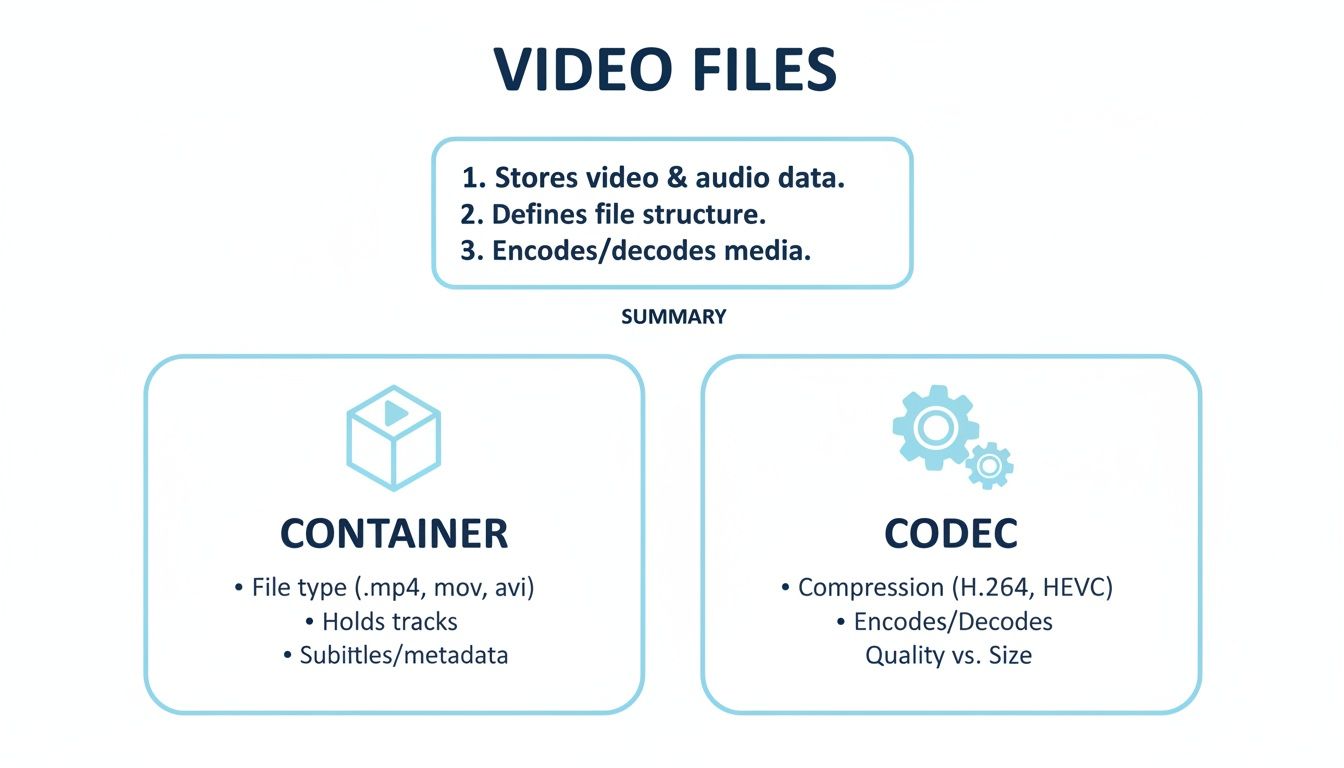
MP4 is compatible with virtually all devices and platforms, so most users already have it on their hard drives. MOV is Apple's native format, produced by every iPhone and Final Cut Pro export. Both upload directly to AI transcription tools without conversion. CapCut's caption tool and Adobe Premiere Pro's Speech to Text feature both accept MP4 and MOV natively, which reflects the broad industry consensus on these two containers.
3. MKV and AVI - Legacy and Open-Container Video Formats That Still Work
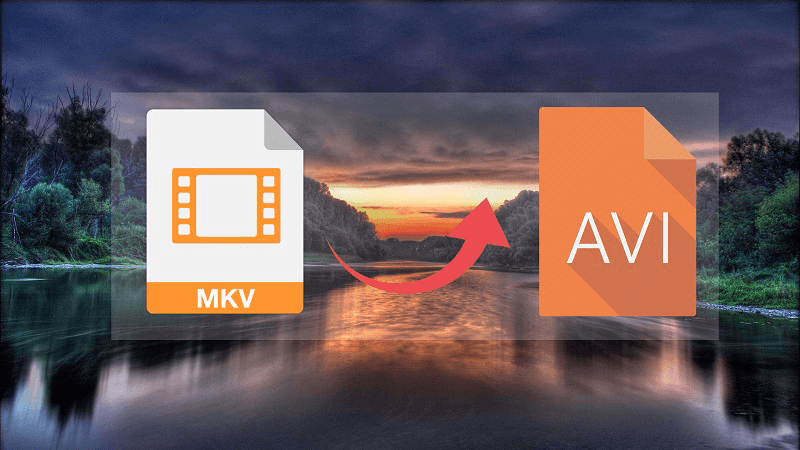
MKV and AVI are open container formats built to hold multiple audio, video, and subtitle tracks, so they are common for long-form recordings like webinars and multi-hour lectures. They upload without issue on tools that support them. The practical tradeoff: a three-hour MKV file can run several gigabytes, and tools with hard file-size caps will reject it silently rather than warn you upfront.
4. MP3 and WAV - The Standard Audio-Only Formats for Transcription
MP3 and WAV are the baseline audio formats every transcription tool supports. MP3 files are compressed, so a one-hour recording stays small and uploads fast. WAV files are uncompressed, which means higher fidelity but larger file sizes. Either works without conversion. If your tool imposes a 30-minute duration cap, WAV's larger size makes the cap hit sooner in practice.
5. M4A and FLAC - High-Quality Audio Formats From Apple Devices and DAWs
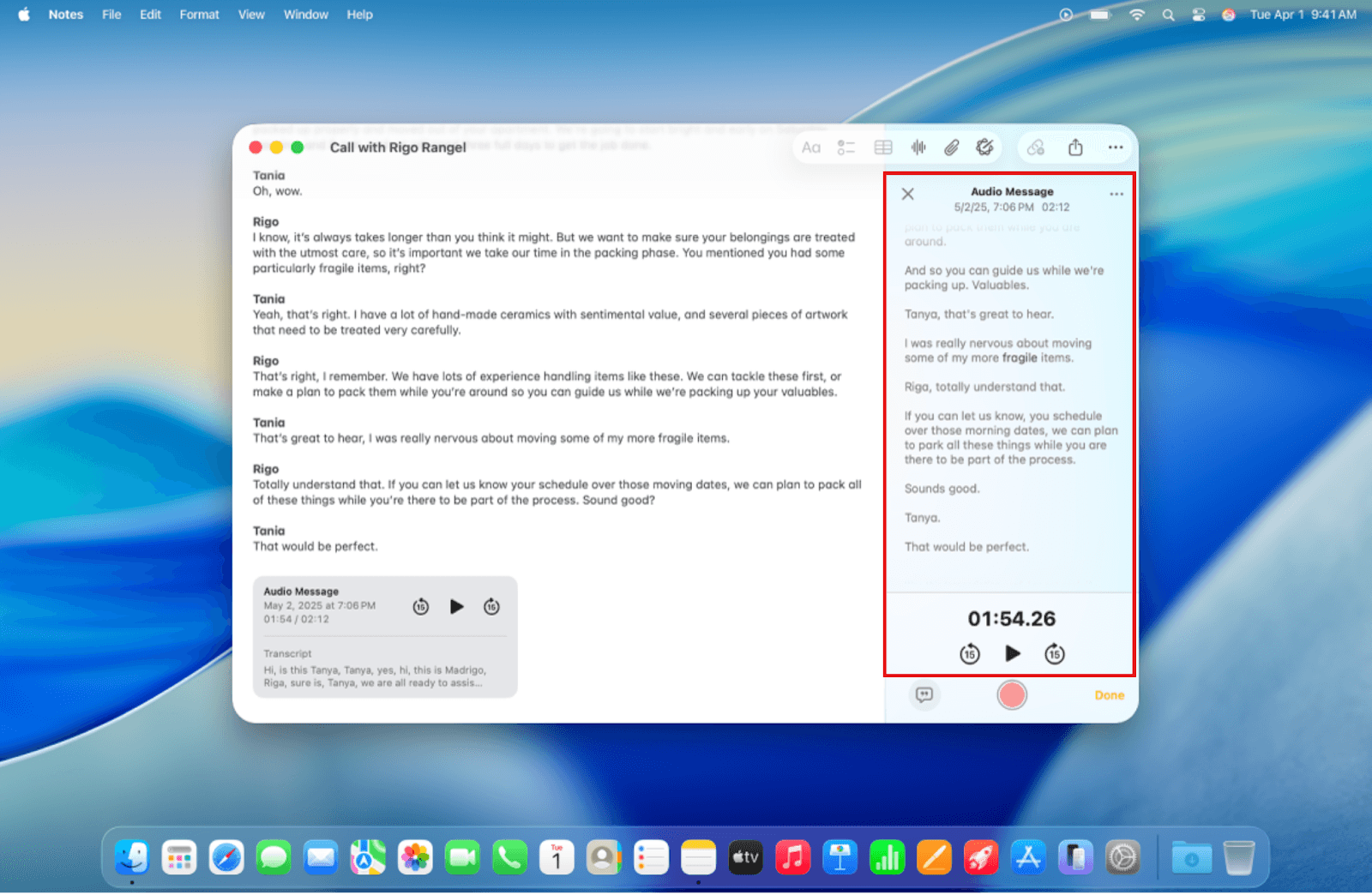
M4A is the default format for iPhone voice memos and most Apple device recordings, so it is one of the most common formats people bring to transcription without realising it. FLAC is lossless and significantly larger than MP3 at equivalent length, making it the format most likely to run into upload timeouts on tools without in-browser audio extraction. Both are accepted by leading AI transcription tools with no pre-conversion needed.
How to Transcribe a YouTube Video Without Downloading It First
YouTube's auto-generated captions seem like the logical shortcut, but what most teams report confirms they struggle with accents, technical terms, and overlapping speech, turning them into a second editing job rather than a finished transcript.
"Transcribing YouTube videos without downloading requires multiple complex steps (fetching audio, chunking, sending to transcription API), which users find burdensome and over-engineered."
--- what we hear from developers building transcription tools

Pros and cons at a glance
| ✓ Pros | ✗ Cons |
|---|---|
| Pull transcript instantly, timestamped, at zero cost | Accuracy is poor; auto-captions are a starting point, not a finished product |
| No tool required, available directly on YouTube | Cleanup erases every minute the free tool saved |
| , | Multi-hour content with poor auto-captions can take longer to fix than typing from scratch |
Option 2 - Paste the YouTube URL Directly Into an AI Transcription Tool
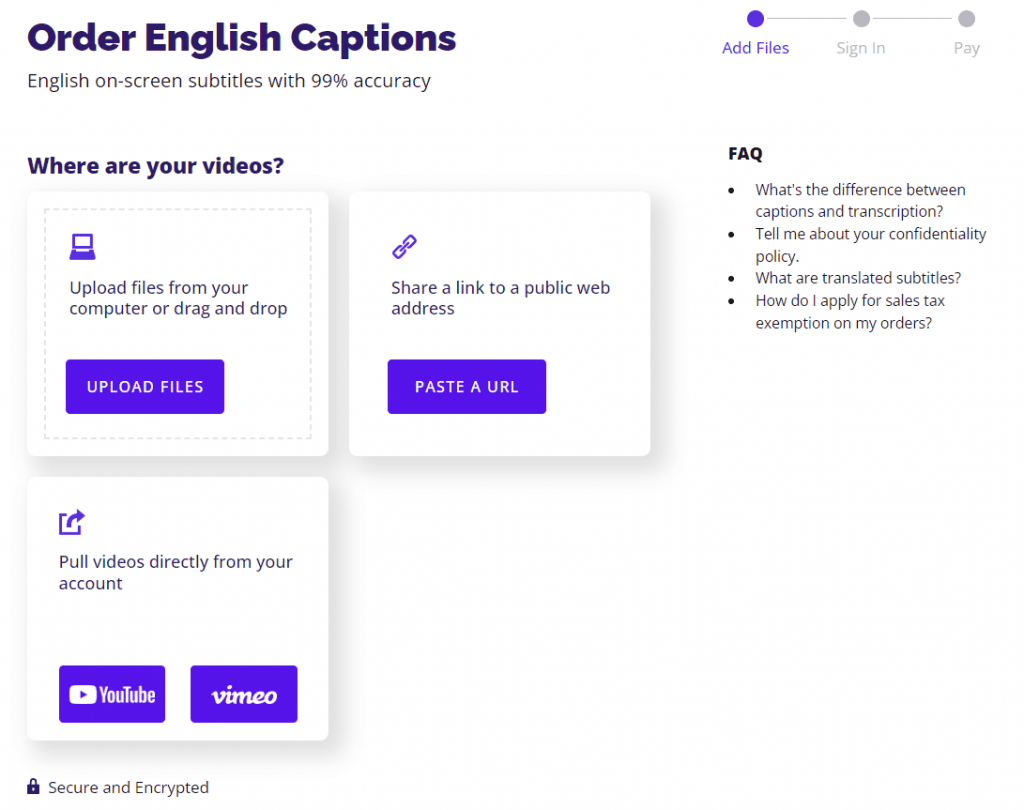
The cleanest path for most people is pasting the YouTube URL directly into a tool that supports link import. Several AI transcription tools accept a raw URL and return a timestamped transcript without you ever saving a file locally; Cockatoo supports this from its upload screen with no account required to get started, the free tier needs no credit card and lets you run up to three transcripts per day, with files up to 30 minutes each.
The critical thing to understand: URL-based ingestion removes format friction, but accuracy still depends entirely on the tool's underlying speech recognition engine, not on the input method. That means technical terminology, heavy accents, or crosstalk can still trip up even a well-designed tool. Cockatoo's transcript editor lets you catch and correct any such errors directly in the platform, so the workflow from raw video to accurate, usable text stays in one place.
Option 3 - Download the MP4 First When Your Tool Requires It
Downloading the video as an MP4 and uploading it to an AI transcription tool still works, most usefully when a tool does not support URL ingestion or when you want a local copy alongside the transcript. A downloaded MP4 fed into the same engine as a pasted URL produces the same transcript output, so if your tool supports URL ingestion, the download step adds friction without adding accuracy. For interview recordings, calls, or meeting footage you already have saved locally, direct upload works just as well, turning that audio or video into accurate text without any retyping is exactly the workflow Cockatoo is built around.
Related Reading
-
Fireflies Vs Otter
-
Descript Vs Otter
-
Trint Vs Rev
-
Happy Scribe Vs Rev
-
Otter.ai Competitors
-
Best Transcription App
How to Review and Edit an AI-Generated Transcript Without Losing Hours
A 60-minute recording does not have to mean 60 minutes of cleanup. Modern AI speech systems achieve word error rates of 5-10% on standard speech, meaning 90-95% of your transcript is already correct before you touch it.

The 1.5x Playback Rule for Auditing a Transcript Fast
Review an AI-generated transcript at 1.5x playback speed while following the text. Your eye catches mismatches between what you hear and what you read far faster than line-by-line re-reading. Using 1.5x playback, users can cut review time to a fraction of what a full re-read requires, often finishing in minutes rather than an hour or more. According to DubSmart (2025), background noise and overlapping speakers can push error rates well above the 5-10% baseline, so this method pays off most when audio quality is decent.
Once you have spotted an error, Cockatoo's in-browser transcript editor lets you fix it without switching tabs or downloading a draft. For teams who need to loop in a colleague or client, Cockatoo exports the corrected transcript directly to PDF or DOCX, giving the other person a file they can open and edit in Word or a standard PDF reader without needing a Cockatoo account.
Fix a Name Once, Never Fix It Again, With Custom Vocabulary
Custom vocabulary breaks the cycle of correcting the same misheard proper noun on every transcript. Correcting a term once in a tool that remembers the edit propagates the fix to every future transcript automatically. Tools such as Sonix offer per-language customisation, and per-language error rates vary enough that domain-specific vocabulary corrections compound in value the more languages or accents a team works across.
Clean-Verbatim vs. True-Verbatim, Choosing Your Style Before You Edit
Clean-verbatim removes filler words and false starts while preserving meaning. True-verbatim keeps every sound. Deciding which style you need before you begin editing prevents rework and keeps your corrections consistent throughout the document.
If the final deliverable is a document someone else will edit or present, exporting to DOCX or PDF from Cockatoo at that point preserves your formatting choices and hands off a file that is immediately usable, not a raw text dump requiring reformatting.
What File Formats You Can Export Your Transcript To and Which One Your Workflow Needs
Cockatoo can export your finished transcript in four formats, and the right one depends entirely on what happens next in your workflow. A file headed for a client's inbox has different requirements than one destined for YouTube's caption uploader, and choosing the wrong format means extra conversion steps or a file your platform simply won't accept. The breakdown below maps each format to the specific job it is built for.
Four export formats exist for a finished transcript, and picking the wrong one creates a second round of work that quietly cancels the time AI transcription just saved.
1. DOCX - The Editable Document Format for Collaborators and Clients
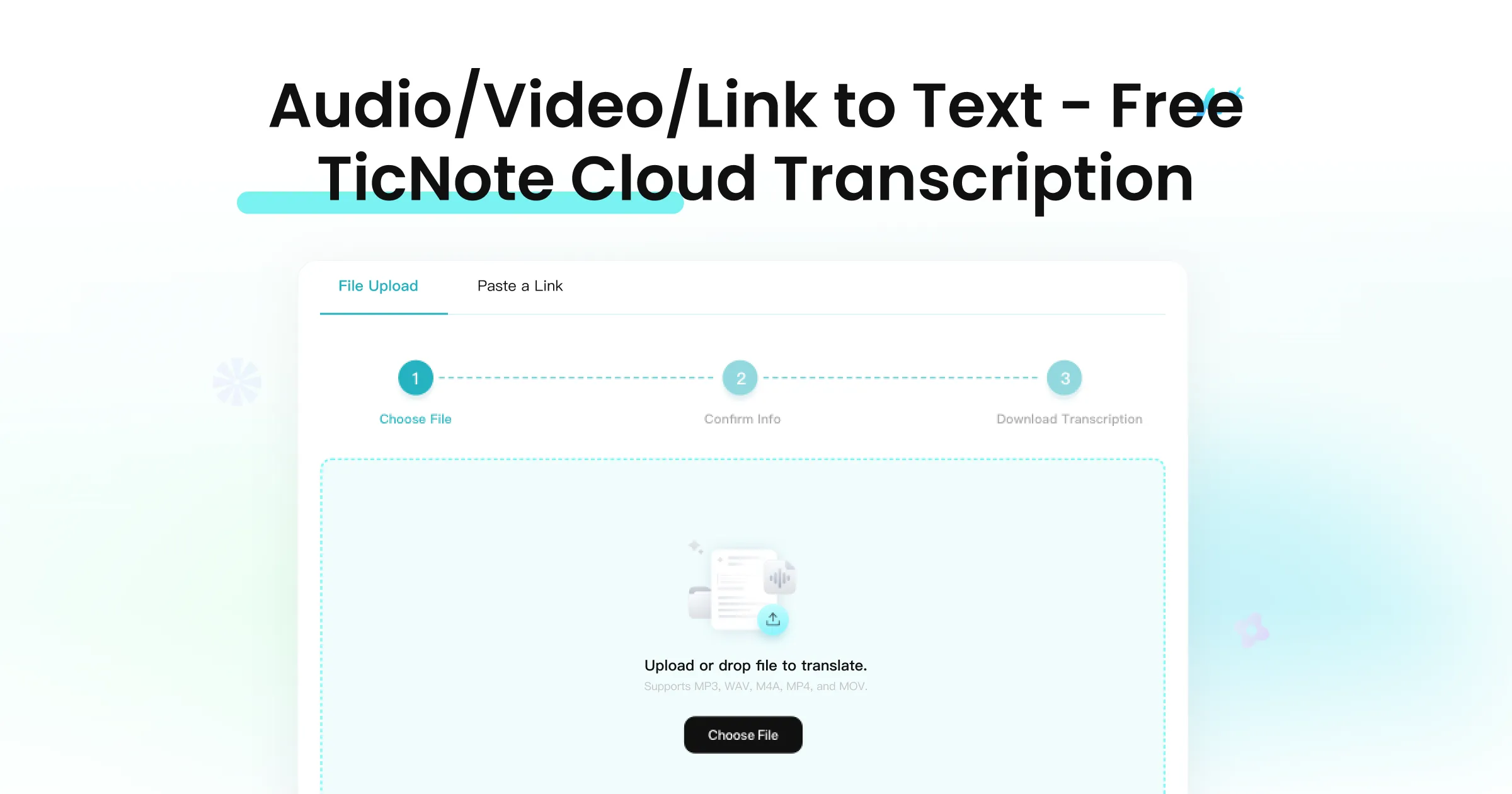
DOCX is the right pick when a colleague, client, or editor needs to mark up the transcript in Word or Google Docs. Formatting survives the transfer: paragraph breaks, speaker labels, and punctuation all stay intact. The one real tradeoff is that DOCX files are not accepted by any video platform's caption uploader, so if captioning is also on your list, you will need a second export.
2. PDF - The Fixed-Layout Format for Filing, Sharing, and Archiving
PDF locks the transcript's layout so it looks identical on every device and cannot be accidentally edited. It is the right choice for sending a final record to a client, storing a legal or compliance copy, or sharing something that should not be changed. The limitation is the same as DOCX: a PDF cannot be uploaded as a caption file to YouTube or any other video platform.
3. SRT - The Universal Caption Format for YouTube and Most Video Platforms
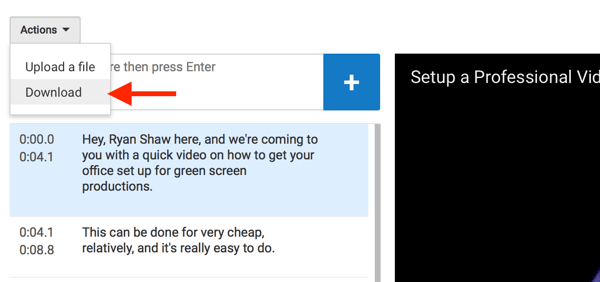
SRT is the format to choose when your next step is uploading captions to a video platform. Enterprise video platforms including YouTube and Vimeo require SRT or an equivalent timed-caption format for direct caption upload. Each line carries a timestamp, so the caption syncs automatically. SRT is not useful for editing or archiving because the timestamp codes make the text hard to read in a word processor.
4. VTT - The Web-Native Caption Format with Styling Support for HTML5 Players
VTT (WebVTT) serves the same captioning purpose as SRT but is the native format for HTML5 video players embedded on websites. If your video lives on a custom site or a platform that uses an HTML5 player rather than YouTube or Vimeo, VTT gives you styling control that SRT does not, including font positioning and colour. For standard YouTube or Vimeo uploads, SRT and VTT are interchangeable; VTT becomes the clear pick only when the player is web-embedded.
5. TXT - Plain Text Export for Pipeline Ingestion and Copy-Paste Workflows
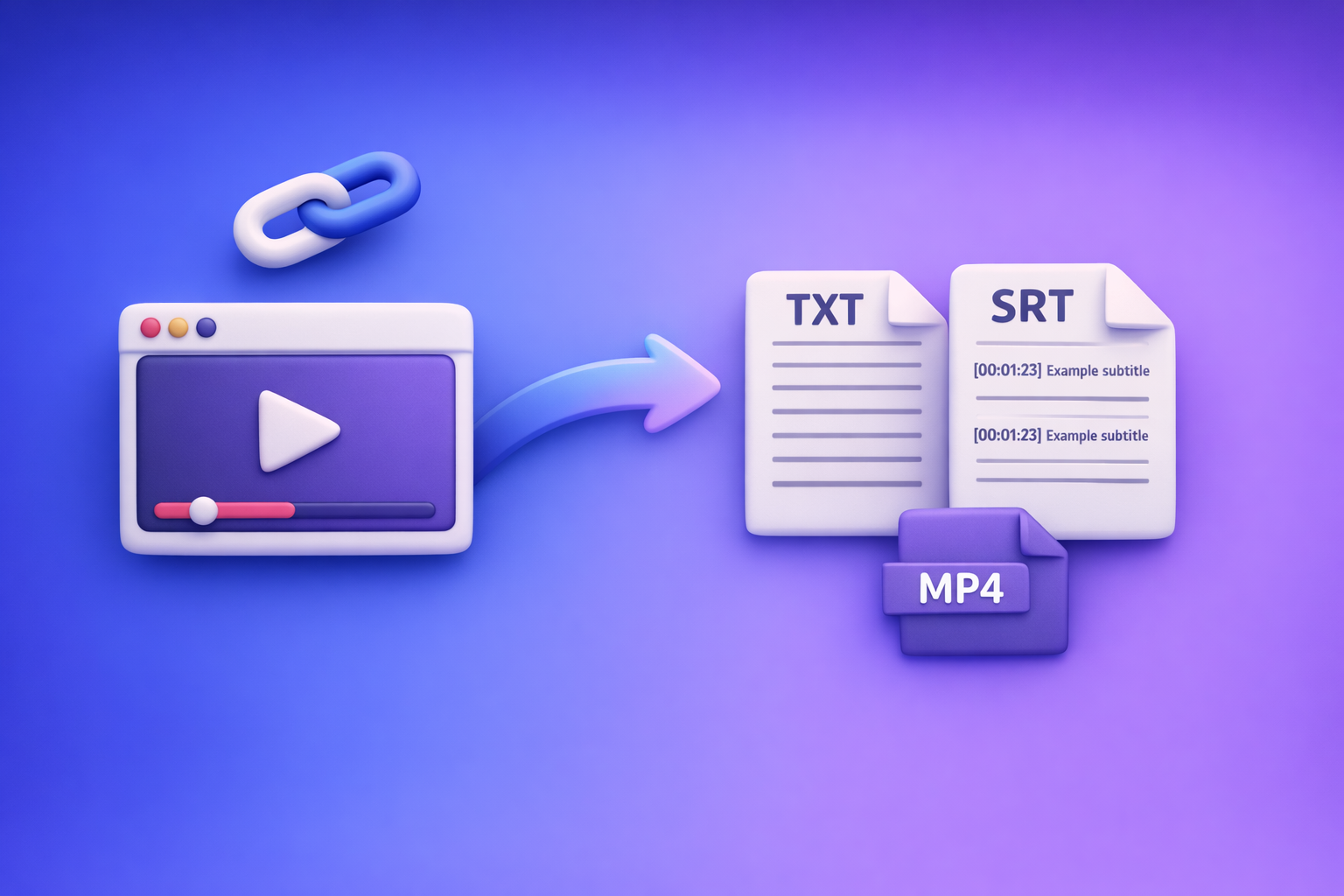
Plain text strips every formatting tag and timestamp, leaving raw words only. That makes TXT the fastest route when you need to paste transcript content into a CMS, a blog editor, a summary tool, or any other system that handles its own formatting. The tradeoff is total: no speaker labels, no timestamps, no styling. Use TXT only when the destination tool will reformat the content anyway.
The practical problem is that most tools make you re-open each file to change the export format. On Pro, Cockatoo lets you export the same finished transcript as PDF, DOCX, TXT, or SRT in a single session, with bulk export across multiple recordings, so a week's worth of interviews does not become a week's worth of re-downloading.
Once you know which format your workflow needs, the next question is whether the transcript inside that file is accurate enough to use, especially if your speakers have accents, use technical vocabulary, or record in a language other than English. That is where the real benchmark data gets interesting.
AI Transcription Accuracy Across Languages and Accents - What the Benchmarks Actually Show
Accuracy claims on transcription tools are almost impossible to evaluate without knowing which language was tested, under what audio conditions, and how performance shifts with accented or conversational speech. The benchmarks that actually matter break those variables apart rather than blending them into a single flattering percentage.
Why "98% Accurate" Is a Meaningless Number
A "98% accurate" claim on a transcription tool's pricing page tells you almost nothing useful. It does not tell you which language was tested, whether the audio was a clean studio recording or a phone call, or how badly performance drops with a regional accent. Two tools can both print "98%" while one collapses on Spanish and the other holds steady.
Word error rates on conversational accented speech can run significantly higher than the clean-speech figures that typically feed a marketing claim, and telephone-quality accented speech tends to perform worse still. That is the audio most creators, interviewers, and small-business owners actually produce.
The gap reflects a deliberate design choice. Models trained for multilingual breadth often trade per-language precision for language coverage, a trade-off a single aggregate percentage hides entirely. It is really hard to make sense of how good a model actually is without being an expert in the area, precisely because bare claims are uninterpretable without per-dataset breakdowns.
A trustworthy benchmark names the dataset, the language, and the audio conditions. It separates clean-read speech from conversational speech and shows word error rate by language, not a blended average that flatters the tool's best-performing inputs. Accented speech, fast talkers, and domain jargon routinely push real-world word error rates well above headline figures, so a transcript that looks nearly finished on a clean recording may need near-total rewriting on the audio most people actually produce. That is not a reason to avoid AI transcription; it is a reason to test your specific language and audio conditions against published evidence before committing to a tool.
Two Transcription Tools Worth Knowing About
Choosing a transcription tool without testing it on your own audio is a gamble, but knowing which tools have published credible, per-language benchmarks at least narrows the field. The two tools below are worth examining not because they are the only capable options, but because they offer enough transparency about conditions and language coverage to let you evaluate the claims rather than simply accept them.
Why Truly Unlimited Transcription Changes the Math for Solo Users

Why "Unlimited" Usually Has a Footnote
Most plans marketed as unlimited transcription cap usage at roughly 720 hours per month, and the pricing structure compounds the problem. Per-seat models mean the one person who owns the transcription job must justify a team licence to a manager, or absorb a team price on a personal card, just to get started, leaving solo users with few practical options.
Many individuals doing this work are already spending over $240 a year spread across multiple single-purpose apps, one for transcription, another for voice notes, another for document translation, before they have processed a single file today.
How In-House Inference Makes a Flat Individual Plan Possible
Running inference in-house rather than routing audio through third-party APIs keeps per-file costs predictable at scale. Because the cost structure supports it, Cockatoo Pro is designed so individual users can process the volume of audio a team might generate, without hitting a hidden ceiling mid-month.
That architecture also allows for tiered modes without tiered pricing. Cockatoo's V4 transcription modes give you the granularity to match mode to task: V4-Fast handles standard interviews, calls, and meeting recordings with no monthly hour cap. V4-Thinking and V4-Pro go deeper on complex or technical audio, with a weekly usage limit shown in your Settings, and standard modes remain available when that limit is reached. For most solo users, V4-Fast is the right tool anyway, and it is the mode that is genuinely uncapped.
Free Tier vs. Pro Before You Spend a Dollar
Pro is the plan marked "Most Popular" on the Cockatoo pricing page: one person, one plan, no approval required.
Related Reading
-
Happy Scribe Alternatives
-
Sonix Alternatives
-
Turboscribe Alternatives
-
Trint Alternatives
-
Trint Vs Otter
Next steps
If your recordings keep turning a five-minute cleanup into an hour of corrections, the path forward starts with recognizing that free auto-captions are a second transcription job, not a shortcut.
Correcting a dense, error-ridden auto-caption draft costs more total minutes than starting from a higher-accuracy transcript and doing a lighter editorial pass. That means the editing step, not the upload or processing step, is where time is actually won or lost. A tool with genuine accuracy on real-world audio compresses that review from an hours-long correction session into minutes. Together, these two realities point to one obvious next step: run your file through an engine built for the audio you actually produce, not the clean studio speech that headline accuracy figures assume.
Start with Cockatoo's transcription software on the free tier. Drop a file or paste a YouTube URL, and a punctuated, speaker-labeled transcript comes back before you have finished setting your export preferences. No credit card, no setup, three files a day up to 30 minutes each, with every export format included.
Frequently Asked Questions
Can I transcribe a YouTube video without downloading it first?
Yes. You can paste a YouTube link directly into Cockatoo's upload area instead of downloading the file. YouTube also has a built-in transcript tool, open the video, click the three-dot menu below the player, and select "Open transcript", but auto-generated captions frequently struggle with accents, technical terms, and overlapping speech, making them a starting point rather than a finished product.
Does the transcription tool label who is speaking, or do I have to sort that out myself?
Cockatoo applies speaker recognition automatically during processing, returning a labelled, punctuated draft without a separate step. The one limitation worth knowing is that when two voices overlap or sound very similar, the AI may merge or mislabel those turns, and those instances require a manual fix.
How long does it actually take to get a transcript back?
AI transcription returns a usable draft in minutes, for a 60-minute interview, a labelled, punctuated transcript is typically ready before you finish your coffee. Manual transcription of that same hour-long recording would consume most of a working day, and human transcription services run 24-48 hours on standard orders.
Is my video file kept private, or does it get stored somewhere I can't control?
Cloud-based transcription requires your audio to leave your device, which is a real concern for sensitive recordings. Cockatoo stores uploads in encrypted cloud storage, 2 GB on the Free plan, and files remain in your account until you choose to delete them.
What's the difference between an SRT file and a plain text transcript, and does it matter which one I export?
A plain TXT file is unformatted text, useful for pasting into a document or feeding into another tool. An SRT file pairs each line of dialogue with a timestamp so a video platform like YouTube or Vimeo knows exactly when to display it as a caption. Choosing the wrong format at the end of a review session means starting the export step over, so it's worth deciding based on what happens next before you export.