How to Transcribe a YouTube Video Fast and Free
YouTube's transcript button exists, but it rarely gives you something usable. Here is where every free shortcut breaks down and what actually gets you clean, structured text.
Clicking "Show transcript" feels like a 30-second fix, and the common assumption is that getting a transcript from YouTube is basically free and instant: you just grab the auto-captions. For millions of YouTube viewers trying to get a clean, usable transcript, it is anything but. The gap between a transcript existing and a transcript being ready to use is wider than almost anyone expects. See our voice transcription app for how this works in practice.
The "Show transcript" button only appears when a creator has captions enabled. A significant share of YouTube videos have no captions at all, because the creator turned them off, never uploaded manual ones, or YouTube's auto-caption system failed to process the audio. When that happens, the transcript panel simply does not exist, and no amount of clicking the three-dot menu will change that. For anyone trying to get a transcript from YouTube on an older video, a niche channel, or content with heavy accents, hitting this dead end is a common and frustrating first stop.

What YouTube hands you is a wall of text: no paragraph breaks, no punctuation, no speaker labels, and accuracy gaps wherever technical vocabulary or accented speech appears. The hidden cost is the 20-plus minutes of cleanup that follow the 30 seconds it takes to open the panel. Reformatting, correcting errors, and adding structure are real work, falling entirely on the person who clicked the button. Tools like Cockatoo approach this differently by re-transcribing the audio directly from a YouTube link rather than recycling existing captions, returning paragraph-structured, editable text where the only editing left requires genuine human judgment.
Key takeaways
- YouTube's built-in transcript is a wall of unpunctuated text with no speaker labels, the copy takes ten seconds; the cleanup takes ten minutes, minimum.
- Most free URL-based transcript tools don't transcribe anything, they repackage whatever captions already exist on the platform, so if the captions are bad, your transcript is bad.
- A significant share of YouTube videos have no captions at all, which means the built-in transcript panel simply isn't an option and a different workflow is required.
- The real time-sink in transcription is never the transcription itself, it's the editing that follows when the source material was low quality to begin with.
- Matching the tool to your situation matters more than chasing features: a single short public video with clean captions needs a different approach than a private recording in a second language.
- Cockatoo closes the loop by accepting a pasted YouTube link directly, no downloading, no converting, and returning an editable transcript in roughly 30 seconds; it also handles uploaded audio and video in dozens of formats, auto-detects mixed-language files, and renders Arabic, Hebrew, Persian, and Urdu right-to-left in both the editor and exports.
Where Every Free Workaround for YouTube Transcription Breaks Down
URL-based transcript generators fall into two broad camps, and the difference between them determines how much cleanup lands on the user. The first camp, and by far the larger one, pulls whatever caption data already exists on the platform, whether auto-generated or manually uploaded, and hands it back reformatted as a text file. The second camp ignores that caption layer entirely and runs its own speech recognition directly against the audio stream.
You just grab the auto-captions. What you do not get is a better transcript.
As the Satura AI Video Editing Buying Guide explains, URL-scraper tools pull the captions YouTube has already generated and perform no independent transcription, so their accuracy ceiling is identical to YouTube's built-in auto-captions. The same guide notes that YouTube's automatic captions carry a word error rate of 20 to 40 percent on videos with accents, technical vocabulary, or background noise.
Tactiq's download button is convenient, but it packages the same rough draft in a different wrapper.
The Hidden Failure Modes of Free Transcript Tools
Tactiq's free plan caps transcript downloads, so a small business producing more than a handful of videos per month hits a paywall before the workflow is established. Beyond caps, free workaround tools consistently run into one of three hard limits: a file-length restriction, a watermark on the exported text, or a per-minute charge that makes "free" a misleading label.
YouTube's built-in transcript UI requires opening the sidebar, scrolling to load content, copying the raw text, and then separately stripping out timestamps and fixing broken formatting.
When a creator has disabled captions, or when YouTube's speech model simply did not generate them, URL-scrapers return nothing at all. There is no caption file to retrieve.
URL-scrapers return nothing at all. There is no caption file to retrieve.
Auto-caption tools embedded in editing software carry the same structural weakness.
Why Free Transcript Tools Create More Work Than They Save
Caption files exported from YouTube Studio arrive as plain text with broken timestamps and no paragraph structure. That experience is especially sharp on content with technical jargon, where free tools fail on the exact words that matter most.
Cockatoo's YouTube link import sidesteps that ceiling by transcribing the audio directly rather than recycling the caption file. Because Cockatoo runs its own speech-recognition pass on the audio stream, it is not constrained by whatever YouTube's model produced, so the document you receive reflects the actual audio rather than a repackaged version of captions that may already carry a 20-40% word error rate (per the Satura AI Video Editing Buying Guide).
20-40%
word error rate on YouTube auto-captions
For longer recordings, interviews, webinars, and training sessions, Cockatoo's Canvas AI notes editor can compress the full transcript down to what needs acting on, surfacing the decisions and action items rather than leaving the user to skim a wall of text. Files are stored in encrypted cloud storage and stay available until you choose to delete them, so there is no race against an expiring link or a session timeout. Cockatoo's free tier supports multiple transcripts per day with no credit card required, so running a direct comparison against whatever caption scraper you are using now, with your own audio, on your own schedule, takes no commitment to start.
How to Use YouTube's Built-In Transcript Feature Step by Step
Ten minutes at minimum to clean up: that gap is the real cost of YouTube's built-in transcript feature, and it catches most people by surprise the first time they paste a wall of unpunctuated text into a document.
Pros and cons at a glance
| ✓ Pros | ✗ Cons |
|---|---|
| Ten seconds to copy | Ten minutes at minimum to clean up unpunctuated text |
| No extension, no account, no download button required | No export path, no paragraph breaks, no speaker labels |
| Genuine shortcut for quick casual reference | Button disappears on private, unlisted, or caption-disabled videos |
| , | Word error rate of 20 to 40 percent on accented or technical content |
| , | Scoped to one video at a time, no batch extraction across a channel |
The Exact Four-Step Path to YouTube's Hidden Transcript Panel
Below the title, click the three-dot menu next to the Save button, then select Show transcript. The panel was designed for casual reference, and beginners discover its limits quickly. There is no way to export directly into a document, no paragraph breaks, and no speaker labels, so even when the copy-paste works perfectly, the result still needs significant manual cleanup before it is usable.
When the Transcript Button Disappears and Why YouTube Won't Tell You
Auto-generated captions also carry a word error rate of 20 to 40 percent on content with accents, technical vocabulary, or background noise, according to the Satura AI Video Editing Buying Guide. On a 30-minute video, even a moderate error rate means a large number of wrong words to fix by hand.
A subtler problem: YouTube's built-in feature is scoped to one video at a time, with no path to batch extraction across a channel.
Where the Native Method Still Falls Short
Auto-generated captions carry no punctuation, paragraph breaks, or speaker labels, and that raw output is where the manual work begins.
A tool like Cockatoo skips the panel entirely. Paste the YouTube link directly and the audio is transcribed from the source, returning an already-structured, editable document within minutes, no setup and no credit card required on the free tier. From there, Canvas, Cockatoo's built-in AI notes editor, lets you edit, clean, and annotate the transcript in the same window, with no shuttling of text between tabs or applications. For videos that need published captions or subtitles, Cockatoo also handles subtitle export formats so the finished file is ready to upload straight back to YouTube.
The free tier supports multiple files per day up to a generous per-file length with encrypted cloud storage, enough to cover most single-session research or content work without spending anything. For longer or higher-volume work, the Pro plan removes the per-day file limit entirely, imposes no hard cap on file length, and supports uploading 20 files at once, with multi-hour recordings handled reliably through in-browser audio processing before upload.
How to Transcribe YouTube Videos That Have No Captions Using AI
A significant share of YouTube videos either have no captions at all or rely entirely on auto-generated text the creator never reviewed. Getting from that raw state to a clean, usable transcript involves two distinct jobs: extracting the audio and then converting it to accurate text. Most free tools stop at job one and hand the rest back to you.

Extract the Audio First, Then Feed It to a Speech-to-Text Engine
For extraction, tools like yt-dlp (free, command-line) or any browser-based YouTube audio downloader pull the audio track as an MP3 or WAV file. That file then feeds into a transcription engine. The extraction step is where most people lose 20 minutes they didn't plan to lose.
One practical shortcut: Cockatoo accepts a YouTube URL directly, so the extraction step disappears entirely. Paste the link, and a transcript comes back inside an editable document, no audio file required.
Some tools marketed as YouTube transcribers are caption exporters in disguise. They pull the caption file YouTube already generated rather than performing independent transcription, so their accuracy ceiling is identical to the source. Users who switch to them to escape bad captions are still cleaning up the same 20-40% error rate, just with an extra tool in the chain.
Whisper Is the Accuracy Benchmark, But Accurate and Usable Are Not the Same Thing
OpenAI's Whisper is widely regarded as the open-source gold standard for speech-to-text accuracy. It runs locally or through free web interfaces such as Hugging Face Spaces or Replicate, making it accessible to non-technical users without installation. The trade-off is what Whisper delivers: a wall of text with no paragraph breaks, inconsistent capitalization, and every "um," "uh," and false start intact. For many use cases, that raw output still requires significant editing before it is readable.
AI Cleanup Is the Step That Determines Whether the Output Is Worth Anything
Stripping filler words, fixing capitalization, and breaking text into readable paragraphs is a substantial editing job. Research on spoken language suggests speakers produce filler words at a steady rate; across a lengthy recording, that adds up to a significant number of individual edits before the text reads naturally. A capable AI cleanup pass handles all of the following automatically:
- removing filler words
- applying sentence-level capitalization
- inserting paragraph breaks at topic shifts
- flagging low-confidence words for human review
Tools like Otter.ai combine transcription and cleanup in a single pass, which reduces the number of steps but can limit control over each stage individually.
Running audio through Whisper and cleaning the output with an AI editor is the most reliable no-captions workflow available today. Which approach makes sense depends on three variables:
- which tool fits your technical comfort level
- whether you're transcribing one file or many
- whether the video is public, private, or entirely offline
The next section maps each of those variables to the method that actually fits.
Which Transcription Method Fits Your Situation
It is about where the labour lands: pick the wrong tool for your situation, and the work does not disappear. It just moves to a later, more tedious stage of your day.
"Users struggle to identify which transcription method fits their specific situation, often not knowing where to start. You just need to search, to be honest."
— what we hear from transcription tool users
Native Tool or URL Scraper - When It's Enough
For a single, short, public YouTube video that already has human-reviewed captions, the native transcript panel or a free URL scraper is genuinely sufficient.
For a 3-minute video, that math is fine.
Private, Unlisted, or Offline Video - Why Caption Scrapers Hit a Hard Wall
A local MP4 or MOV file has no YouTube URL at all. A researcher with an offline MKV interview file will find neither tool accepts that container natively without a conversion step first, trivial once, unbearable at scale.
Batch Workflows and Mixed Sources - The Per-Video Friction That Compounds
For batch transcription, the bottleneck is repetition. A voice transcription app that accepts a pasted YouTube URL, a Dropbox share link, a Google Drive file, and a direct upload inside the same session changes the actual time cost.
The practical requirement narrows to one: a tool that accepts a YouTube link directly, handles private and offline files without an audio-extraction detour, and processes a batch without making you start over for each video.
Which Transcription Method Should You Use? (Quick Decision Table)
| Your situation | Best method | Why |
|---|---|---|
| Short public video, clean audio, captions already exist | YouTube native transcript panel or free URL scraper | Fast enough; cleanup is minimal |
| Short public video, captions missing or garbled | Cockatoo YouTube link import | Re-transcribes audio directly; no extraction step |
| Private, unlisted, or offline file | Cockatoo direct upload (MP4, MOV, MKV, etc.) | Caption scrapers have no source to pull from |
| Batch of mixed sources (YouTube + Drive + Dropbox) | Cockatoo Pro (multi-source, single session) | Eliminates tool-switching overhead per file |
| Technical jargon or accented speech | AI transcription engine (Cockatoo or Whisper) | Lower word-error rate than YouTube auto-captions |
Related Reading
- Market Research Transcription
- Qualitative Research Transcription
- Business Transcription
- Podcast Transcription Software
- Automatic Video Transcription Software
- Meeting Transcription And Summary Ai Tools
- Best Lecture Transcription App
- Best Medical Transcription Software
- Best Closed Captioning Software
- Best Transcription App For Iphone
- Best Transcription Software For Qualitative Research
- Zoom Ai Transcription
- Best Transcription Software For Interviews
How Cockatoo Turns a YouTube Link Into an Editable Transcript in Roughly 30 Seconds
According to GoTranscript's 2024 transcription guide, a professional human transcriptionist takes roughly four hours to transcribe one hour of audio, and AI auto-captions still require a significant editing pass, especially when the speaker has an accent, uses technical terms, or shares the frame with someone else.
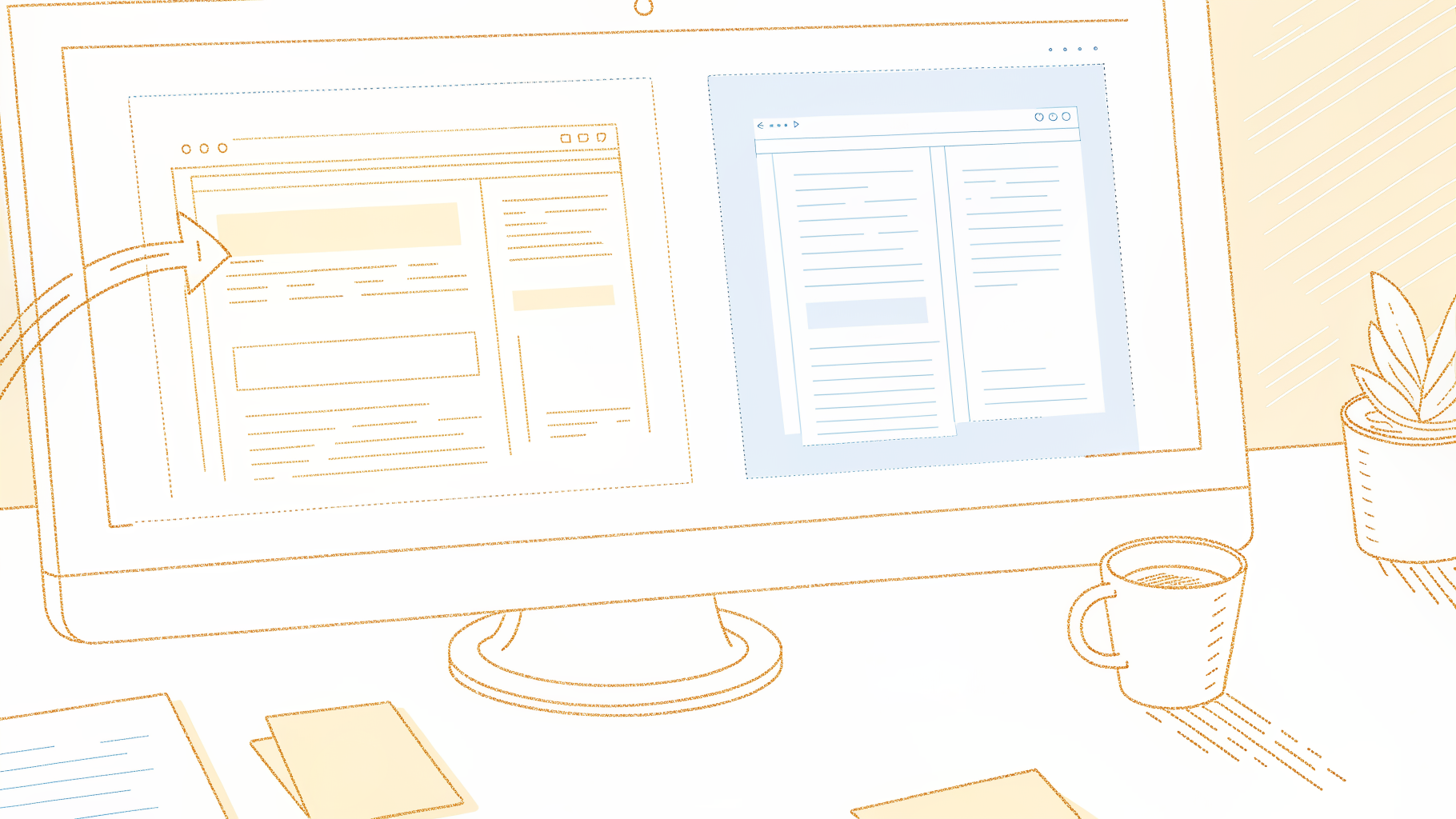
How Cockatoo Removes the Extraction and Cleanup Steps When You Paste a YouTube Link
Cockatoo's direct-link import eliminates the two hidden time taxes every other free method imposes simultaneously: the extraction tax (the multi-step, settings-buried download process that produces misaligned timestamps) and the accuracy tax (the 20-40% word error rate that turns "got the text" into "now edit the text"). The roughly 30-second turnaround reflects the removal of two entire workflow stages that competitors leave to the user.
Paste a YouTube URL into Cockatoo's voice transcription app and two of those three steps are gone before you see a single word. The tool pulls the audio stream directly from the link, runs it through Cockatoo's in-house transcription engine, and returns a structured, editable document. That structural shortcut produces a finished transcript in roughly 30 seconds. The step that remains is the only one worth keeping: a human deciding whether a proper noun is spelled correctly or a sentence needs a comma moved.
GoTranscript's 2024 guide notes that audio quality, accents, and overlapping speakers all extend cleanup time significantly. On clean-audio recordings, Cockatoo's transcription engine produces output that typically requires only a light editing pass, compared with the four-hours-per-hour benchmark for manual transcription cited by that same guide. On a lengthy training video, a small-business owner can realistically export a DOCX and share it with a colleague far faster than the full manual cleanup process would otherwise require.
What the Output Actually Is
The document Cockatoo returns has paragraphs, punctuation, and toggleable timestamps. If the video is a bilingual Spanish-English interview, language auto-detect runs before transcription begins, so the output reflects the actual language of the speech rather than forcing everything through an English filter.
What Cockatoo removes is the extraction step and the format-conversion step that burn time before you see the first word.
The next question is what to do with that document once it arrives.
How to Turn the Transcript Into Something Usable
The document Cockatoo returns is already structured, which means the third step, deciding what the transcript becomes, starts from a position most free methods never reach. Cockatoo's export options, DOCX, TXT, SRT, and timestamped variants, map directly to those destinations rather than leaving the format decision as a fourth hidden step.
The honest scope of this third step is narrow by design. Confirm that a speaker attribution is correct if the video had two voices. On a clean-audio recording, that pass takes minutes, not the four hours per hour of audio that GoTranscript's 2024 guide benchmarks for full manual transcription.
How to Edit and Refine Your Transcript After Generation
Send a plain-text file to someone who expected a Word doc and the first reply you get is not feedback on the content; it is a format request, and nothing has been read yet. The editing step after generation is not tidying; it is the last decision point that determines whether your work is actually done.
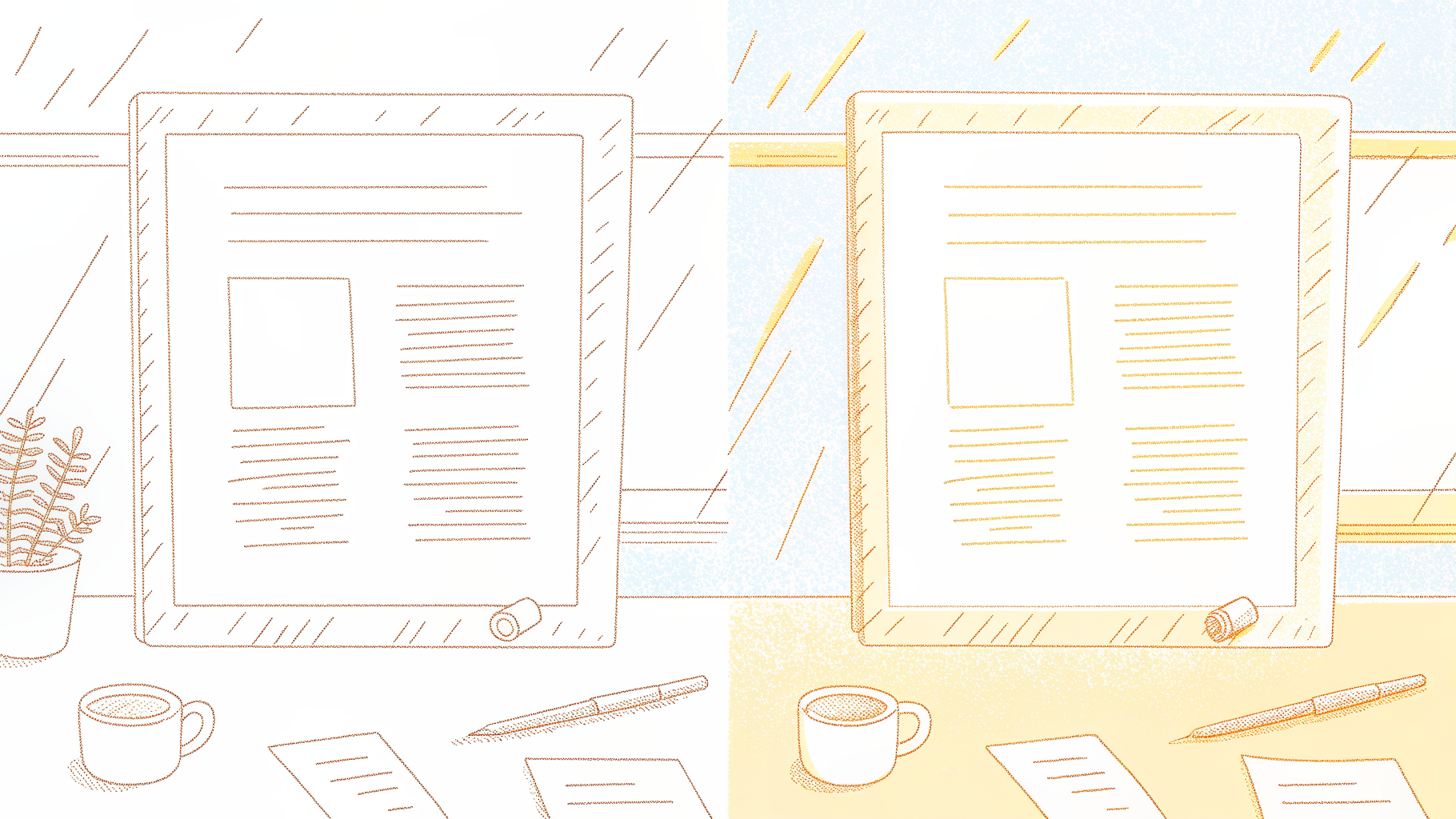
How to Fix Speaker Labels and Filler Words in Your YouTube Transcript
The difficulty of editing a transcript is set before you open the file. A transcript from an independent AI transcription engine needs targeted spot-correction: wrong proper nouns, a misheard technical term, an occasional speaker swap. A transcript pulled from YouTube's auto-captions needs structural reconstruction on top of word-level fixes: punctuation added from scratch, speaker labels created where none existed, paragraph breaks inserted throughout.
Either way, working across multiple files compounds the effort. The practical move is to consolidate all your text into a single file first, so you can search, scan, and correct in one place rather than hunting across fragments.
Cockatoo's in-browser transcript editor is built around exactly that workflow. Rather than exporting a raw file and opening a second application, you correct speaker labels, strip filler words ("um," "uh," "you know"), and fix misheard proper nouns directly inside Cockatoo, then carry any longer-form notes or reformatting into Canvas, the AI notes editor included on every plan, including the free tier. Having the editor and the notes layer in the same tool means the structural pass and the word-level pass happen in one session, not two.
Fix speaker labels and proper nouns first; they account for a disproportionate share of errors compared to phonetic mistakes on common words. Then remove filler words in a single pass, because leaving them in a document someone will quote from wastes their editing time instead of yours.
How to Choose the Right Export Format for Your YouTube Transcript
Format choice is a downstream decision. A video editor needs an SRT file to drop captions onto a timeline. A developer parsing text programmatically needs a TXT.
Cockatoo exports to PDF, DOCX, TXT, and SRT, with bulk export supported, so the transcript you corrected in-browser can go directly to a Word-compatible file a colleague can mark up, a PDF a client can open without editing, or an SRT a video editor can drop onto a caption timeline, without re-exporting from a separate tool. If your recipient list is mixed, you will need to export twice.
Once the transcript is corrected and exported in the right format, the only thing left is to stop re-doing this setup from scratch every time, which is exactly what the next step is about.
Next steps
If the video you need has no captions, or the captions YouTube generated are too garbled to salvage, the path forward starts with a tool that transcribes the audio directly rather than recycling whatever YouTube's speech model already got wrong. Start with our voice transcription app.
URL scrapers inherit every flaw of YouTube's auto-captions because they pull the existing caption file rather than running their own transcription pass, meaning their accuracy ceiling is identical to the source, including the same 20 to 40 percent word error rate on difficult audio. And the editing job that follows is not uniform: a transcript built from auto-captions requires structural reconstruction (punctuation, speaker labels, paragraph breaks) on top of word-level correction, while a transcript from an independent AI engine needs only targeted spot-fixes. Together, those two realities point to skipping the caption layer entirely and starting from the audio itself.
Start with Cockatoo's voice transcription app. Paste your YouTube link, and roughly 30 seconds later a structured, editable document is waiting in every export format you need, with no audio download, no timestamp cleanup, and no credit card required on the free tier.
Frequently Asked Questions
What happens if the YouTube video I need has no captions at all?
When a creator has disabled captions or YouTube's speech model never generated them, the built-in transcript panel simply doesn't appear, there's no button and no error message. The reliable fix is a tool that transcribes directly from the audio rather than pulling the caption file; Cockatoo accepts a YouTube URL and re-transcribes the audio stream, so a missing caption track doesn't block you.
Why is the free transcript I grabbed from YouTube still full of errors?
Most free URL-based tools don't do any transcription of their own, they retrieve the caption file YouTube already generated and repackage it. That means their accuracy ceiling is identical to YouTube's auto-captions, which carry a word error rate of 20 to 40 percent on content with accents, technical vocabulary, or background noise. Switching tools doesn't fix the errors if the new tool is still recycling the same source captions.
Can I paste a YouTube link directly instead of uploading an audio file?
Yes, Cockatoo accepts a YouTube URL directly, so the step of downloading an audio file and re-uploading it disappears entirely. Tools like yt-dlp can extract audio as an MP3 or WAV for use with other engines, but that extraction step alone is where most people lose 20 minutes they didn't plan to lose.
Once I have a transcript, can I get it into a caption file to upload back to YouTube?
Cockatoo exports finished transcripts in SRT format alongside PDF, DOCX, and TXT options, so the output is ready to upload straight back to YouTube as a caption file without additional conversion.
Is there a way to get a cleaner, more readable transcript without spending hours reformatting it myself?
The post identifies the cleanup burden, stripping filler words, fixing capitalization, adding paragraph breaks, and removing timestamps, as the real hidden cost of most free methods. Cockatoo's approach returns an already-structured, editable document after transcribing from the audio source, and its built-in Canvas AI notes editor lets you edit, clean, and annotate the transcript in the same window without shuttling text between applications.