How to Extract Words From PDF Quickly and Accurately

Copy-paste works on half your PDFs and silently fails on the rest. Here is how to tell which type you have, and extract every word without the reformatting mess.
Roughly 80% of business documents are received as PDFs rather than editable files, according to industry surveys on document workflows. The common assumption is that any free tool or the basic copy-paste method is good enough for getting words out of a PDF, it's a simple job. That single fact about document volume explains why PDF text extraction trips up so many people, so often. It's a daily friction point for anyone who handles supplier catalogs, contracts, or reports, and the failure usually happens in one of two completely different ways.
80% of business documents received as PDFs
Pros and cons at a glance
| Pros ✓ | Cons ✗ |
|---|---|
| Works on any text-layer PDF | Silently fails on scanned or image-only PDFs |
| No extra software required | Fails on password-protected files that block text selection |
| Extracts text in under ten seconds | Rarely preserves document structure; columns, headings, and tables collapse |
Not all PDFs store text the same way. A selectable-text PDF embeds actual character data, so Ctrl+A highlights everything and copy-paste works. A scanned PDF is a photograph of a page stored as an image, there is no text layer. Broader industry trends suggest roughly 30-40% of PDFs in circulation are image-only scans. A marketing coordinator who opens a scanned supplier catalog, hits Ctrl+A, and gets nothing selected isn't doing anything wrong. The file simply doesn't contain extractable text yet.
Even when a PDF contains a text layer, the extracted output frequently arrives as broken line breaks, merged columns, and pagination artifacts. Fixed-layout PDFs store text in rendering order, not reading order, so a two-column table often pastes as interleaved fragments from both columns simultaneously.
Professionals spend an average of 30 minutes or more manually reformatting extracted PDF content before it becomes usable. Then add the language problem: a significant share of PDFs in global business workflows contain non-English content, so clean text still requires a separate translation step, two tools, two exports, two rounds of formatting. Popular guides don't acknowledge that extraction and translation are two separate problems stacked on top of each other, and that solving only the first leaves the reader exactly halfway through the actual job. The single most important diagnostic is whether your PDF contains selectable text at all, because the right method depends entirely on the answer.
extraction and translation are two separate problems stacked on top of each other
Key takeaways
- 80% of business documents arrive as PDFs rather than editable files, which means text extraction is a daily friction point, not an edge case.
- Copy-paste only works on PDFs with a native text layer; scanned PDFs are images, and no amount of Ctrl+A fixes that, OCR is the only path.
- Three tools most people already have (Adobe Acrobat, Microsoft Word, Google Docs) can export a full PDF to an editable format without a new subscription, but each handles formatting differently enough to matter.
- Getting the words out is the easy part of bulk extraction, choosing the right Python library (PyMuPDF, pdfplumber, or pytesseract) for the file type is where pipelines actually break.
- The real cost of PDF extraction isn't the OCR step, it's the mandatory tool-switching afterward: OCR, then clean, then translate, with compounding errors at every handoff.
- Cockatoo closes that chain by handling both the extraction and the translation in one step, upload a PDF (including scanned files), get back a translated PDF with an in-app preview before you download, no pipeline rebuilding required.
How to Extract Text From a Standard PDF Using Copy-Paste
Copy-paste is the fastest route to extractable text when your PDF was created digitally rather than scanned, but the method only works if the file actually contains a real text layer. The steps below show you how to confirm that in seconds, pull the text cleanly, and use built-in OS tools on Mac and Windows when the standard approach falls short.
Knowing which type of PDF you have before you start saves the wasted minute of trying and the quiet frustration of not knowing why nothing came through.
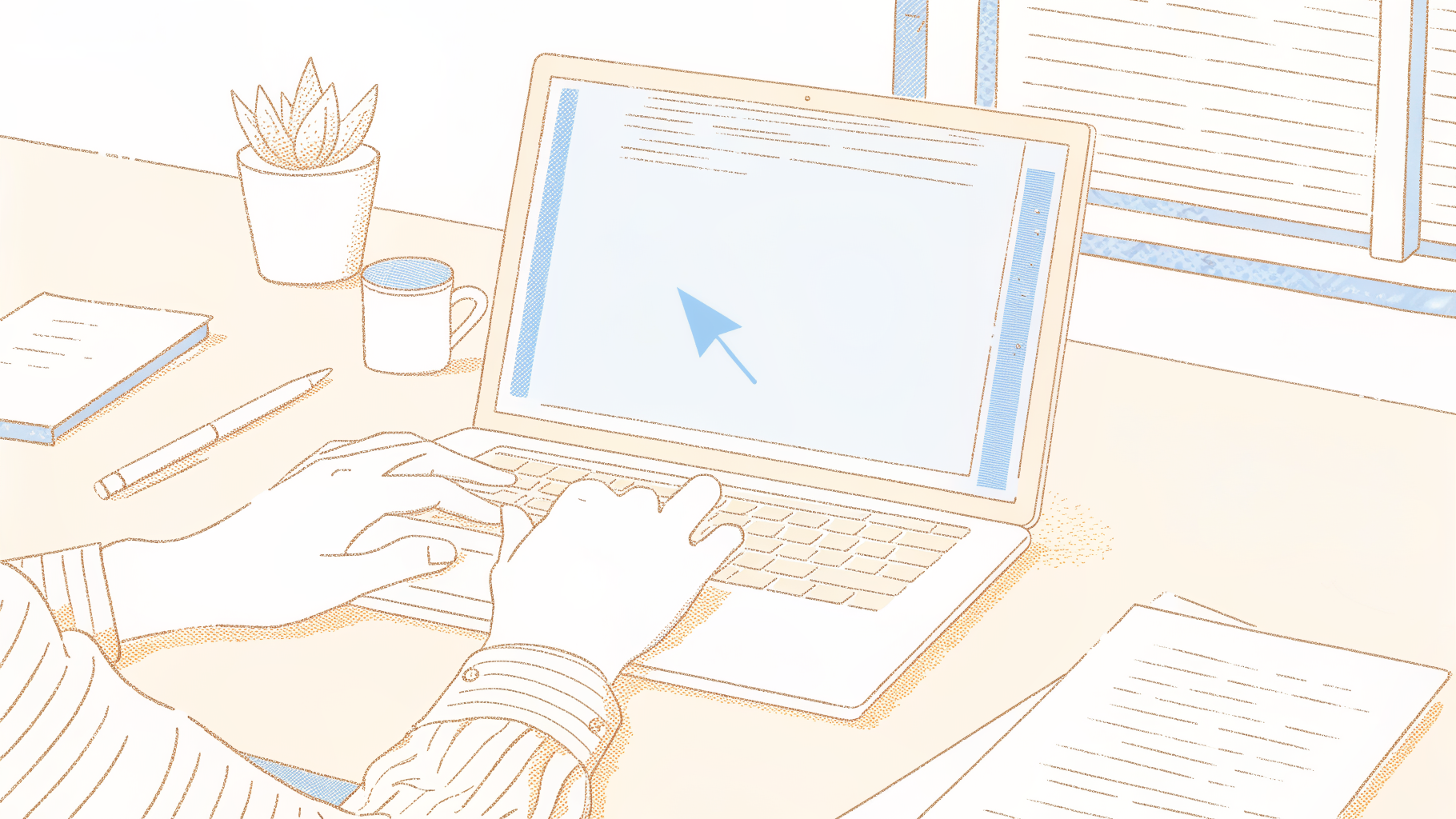
The Three-Keystroke Method That Works on Any Text-Layer PDF
This only works on PDFs with an actual text layer, files created digitally rather than scanned from paper.
If your cursor draws a selection box over the whole page instead of following the words, you are looking at an image, and copy-paste will return nothing useful. Paste into a plain-text editor like Notepad first, as rich text editors can carry over invisible formatting that causes problems downstream.
OS-Native Fallbacks on Mac and Windows
Apple introduced Live Text for PDFs in macOS Monterey (12.0), so any Mac running Monterey or later can recognise and copy text directly from a PDF in Preview, with no third-party app needed. Open the file, hover over the text until the cursor changes to an I-beam, then select and copy as normal. Windows 11 added a Text Actions button to the Snipping Tool, available from build 22621.2361 onward. Capture a region of your PDF, click Text Actions, and the recognised text appears ready to copy. For more demanding work, Microsoft PowerToys Text Extractor supports over 30 languages using Windows OCR, making it useful when a document mixes languages or uses a non-Latin script.
Two Conditions That Break Copy-Paste
Industry estimates suggest roughly 40 to 80 percent of business PDFs are image-only scans, which means the method most people reach for first is quietly incompatible with nearly half the documents they encounter. The two conditions that break copy-paste are predictable: a password-protected file that blocks text selection, and a scanned PDF where every page is a flat image with no underlying text. Neither failure gives you an error message. You paste and get nothing or garbled characters, so most people assume the PDF is broken rather than recognising that the document type is simply incompatible with copy-paste.
There is a subtler failure mode that even successful copy-paste can produce: standard extraction rarely preserves document structure. That structural collapse is just as much a dead end as getting no output at all.
For anyone who then needs that content in a different language, Cockatoo's document translation converts PDF, DOCX, PPTX, XLSX, and TXT files into translated, ready-to-use documents, without a separate export step. The Free plan lets you try document translation with no credit card required (one page with a watermark), while the Pro plan removes those limits and supports truly unlimited file translations, so a multi-page technical document or a lengthy contract can move through the full workflow in one go.
Related Reading
- Best Voice Transcription App
- Can I Get A Transcript Of A Phone Call
- What Is Voicemail Transcription
- How To Transcribe Interviews
- Transcript Vs Transcription
- Types Of Transcription
- Focus Group Transcription
- How To Transcribe Faster
How to Export an Entire PDF to Plain Text or Word Format
Paying for Adobe Acrobat Pro 2024 to convert a PDF you received once feels like buying a toolbox to hang a single picture frame. The free and low-cost alternatives covered here range from browser-based tools to desktop apps, and each handles formatting differently, so picking the wrong one can turn a two-minute job into an hour of cleanup.

Adobe Acrobat Pro and Microsoft Word as Full-Document Export Paths
Adobe Acrobat Pro 2024 gives you the most direct route, accessed through the Export PDF panel in the right-hand toolbar.
Export PDF, then choose either Microsoft Word or Text (Plain) as your output format. The entire document exports in one pass, preserving heading hierarchy, paragraph spacing, and most table structures better than any copy-paste approach.
Microsoft Word handles the same job without a separate PDF tool, but one stumbling block catches beginners off guard: Word's "Add File" or "Open" dialog defaults to showing only Word documents, making PDFs invisible in the browser. The fix is to change the file-type filter in that dialog to "All Files" before navigating to your PDF, then choose Open With Word. Once Word finds the file, it converts the whole document automatically. A 20-page vendor proposal comes through with headings largely intact and body text in editable paragraphs. The trade-off: complex multi-column layouts sometimes collapse into a single column, so check the output before you share it.
Google Drive OCR and PDFgear as Free Alternatives
Upload a text-layer PDF to Google Drive, right-click it, and choose Open With Google Docs. Google's built-in OCR produces an editable Google Doc you can download as DOCX or plain text. Accuracy on standard PDFs is high for body text, though dense tables and footnotes sometimes lose their position. Table text in particular can appear out of sequence, with cell contents shuffled away from their headers. If the document you are converting is table-heavy, check every row before treating the output as reliable.
PDFgear is a free desktop app with over 100,000 downloads on major software directories. It offers a dedicated convert PDF to text or DOCX workflow, runs offline, and adds no watermark on export. For anyone converting files regularly without a cloud dependency, it is the strongest free option on this list.
Formatting Fidelity Trade-offs When Choosing Your Output Format
The choice between plain text and DOCX is a real one. Plain-text output strips every visual element, fonts, columns, tables, and images, leaving content that is clean, portable, and easy to paste into any editing pipeline. DOCX output keeps the structure but introduces conversion artifacts proportional to layout complexity. Pick plain text when you need the words and nothing else. Pick DOCX when headings, sections, and numbered lists are part of what makes the document useful.
Once you have that exported file, Cockatoo's document translation takes the DOCX or TXT and converts it into the target language directly, most useful when the original PDF is a foreign-language contract, supplier document, or report that needs editing before it goes anywhere. The Free tier handles this with no credit card required, translating up to 1 page (with a watermark) across PDF, DOCX, PPTX, XLSX, and TXT formats; the Pro plan removes that cap entirely with truly unlimited file translations.
One scenario none of the tools above handle well is a scanned PDF with no text layer, and this is where a silent, frustrating failure catches beginners completely off guard. Every method above returns a blank or useless file, with no error message to explain why.
Cockatoo handles this path directly, applying OCR before conversion so that scanned documents produce the same editable output as native text PDFs.
How to Extract Text From Scanned PDFs Using OCR
Scanned PDFs are images of pages rather than real text, which is why there is no text layer underneath, copy-paste returns nothing, and switching to a different PDF reader won't change that.
"Scanned PDFs are essentially images of pages, not real text, making it impossible to search or extract text without OCR processing." — what we hear from document management professionals
Text-Layer PDF vs. Scanned Image PDF
To extract text from a scanned PDF, you need OCR software. A standard text-layer PDF stores characters as data; a scanned PDF stores only an image of those characters, so OCR is the only bridge between the two.
The scale of the problem compounds quickly. Working through even a modest archive, say, 800 scanned pages, turns OCR extraction into a time-consuming, resource-intensive task when you are relying on a single-document workflow. The choice of tool matters as much as the process itself.
OCR Tools Ranked by Accuracy, Cost, and Volume
The right tool depends on how many documents you have and how complex their layouts are. ABBYY FineReader is the specialist choice for complex layouts. It supports over 190 languages and preserves tables and multi-column structures during conversion, capabilities free tools typically can't match.
The trade-off is cost: FineReader is a paid desktop application, overkill for a single one-off document. Google Document AI is built for high-volume, programmatic processing, the right call when you need to push hundreds of pages through an automated pipeline. LlamaParse sits in the developer-friendly middle ground, particularly strong at extracting structured data from business documents like invoices and contracts where field positions matter.
The free option is Microsoft OneNote. Insert the scanned PDF as a printout, right-click the image, and select "Copy Text from This Page of the Printout." It's hidden, it's free, and it works for a single clean document.
What OCR Gets Wrong
OCR is a probabilistic process, and its accuracy degrades on exactly the document types where extraction is most urgently needed: complex layouts, mixed languages, and low-quality scans. This creates a dangerous inversion where the confidence users place in OCR output tends to be highest precisely where that output is least trustworthy. A crisp single-column page converts cleanly; a faded photocopy of a two-column contract with a footer in a second language will not.
Handwritten text is particularly unreliable. Run a spot-check on numbers and proper nouns first. Those are where OCR errors cause the most downstream damage.
A second wall appears after OCR succeeds: the text is readable but still in the wrong language. Cockatoo's document translation handles exactly this handoff. You can upload an already OCR-processed file, or let Cockatoo's own OCR layer handle the scanned PDF directly, with no pre-processing step required on your end.
From there, Cockatoo translates PDF, DOCX, PPTX, XLSX, and TXT files into or out of English, covering the full range of formats a typical business document workflow produces. Pro users get truly unlimited file translations with no monthly cap, covering multi-hour audio files and multi-page documents alike, including bulk uploads of up to 20 files at a time, which makes a meaningful dent in a large scanned archive without manual queuing.
No credit card is needed to get started on the free tier.
Related Reading
- Market Research Transcription
- Qualitative Research Transcription
- How To Transcribe Youtube Video
- Business Transcription
- Podcast Transcription Software
- Automatic Video Transcription Software
- Meeting Transcription And Summary Ai Tools
- Best Lecture Transcription App
- Best Medical Transcription Software
- Best Closed Captioning Software
- Best Transcription App For Iphone
- Best Transcription Software For Qualitative Research
- Zoom Ai Transcription
- Best Transcription Software For Interviews
How Python Scripting Handles Bulk or Automated PDF Extraction
When a pipeline has to process hundreds of files, writing a script becomes the only practical path.

Three Python Libraries That Cover Most Bulk Extraction Scenarios
pypdf, pdfplumber, and pytesseract each solve a different slice of the bulk extraction problem. pypdf is the right starting point for text-layer PDFs where you need speed and simplicity: it loops through pages fast and handles large batches without much setup. pdfplumber earns its place when files contain structured tables.
According to pdfplumber's own documentation, the library uses character-level positioning to reconstruct tabular data that pypdf would return as a flat string of merged values. pytesseract is a different category. It wraps Google's Tesseract OCR engine and handles scanned image PDFs where neither other library can extract anything useful.
As the Tesseract documentation notes, OCR accuracy scales directly with scan resolution: files below 200 DPI produce noticeably degraded output, and no Python code compensates for a blurry source image.
How to Decide When a Python Script Is Worth Building
The honest threshold is around 50 or more files processed on a repeating schedule. Above that, a script pays back its setup cost quickly because the logic runs unattended, handles naming conventions consistently, and pipes output directly into a downstream process.
The failure mode worth naming plainly: a pipeline built on a flawed extraction method manufactures errors at scale. When the underlying PDFs are inconsistently formatted, with shifting column layouts or mixed encoding, extraction logic breaks silently and returns wrong data rather than no data, and those errors compound with every file the script processes.
What Scripts Still Cannot Fix
Image quality, layout reconstruction, and language are the three limits no library currently solves automatically. A scanned PDF at 150 DPI returns garbled text from pytesseract regardless of how the script is written. A script that processes 300 supplier invoices from international partners produces 300 raw text files in several languages, a volume and variety problem that no extraction library addresses.
That is exactly where Cockatoo's document translation picks up. Once extraction has run, Cockatoo can translate a PDF, DOCX, PPTX, XLSX, or TXT file into or out of English without requiring a separate workflow or a second tool in the pipeline. On the Free tier, which requires no credit card, document translation is available for single-page files. Cockatoo Pro, the tier marked "Most Popular" on the pricing page, removes that restriction and supports truly unlimited file translations alongside unlimited transcription and transfers, with no monthly hour cap on the default modes. Pro is currently listed at $11.99 USD/mo billed annually.
Scripting solves the volume and repeatability problem well, but language and quality constraints require a purpose-built tool to carry the work the rest of the way.
The Extraction Step Most Guides Skip - What to Do When the Words Need Translating Too
Extracting text from a PDF is only half the problem when the document is in another language, because the standard fix of copying into a translation tool quietly destroys the formatting before the translation even begins, leaving you with content that is accurate but structurally unusable.

How to Extract and Translate PDF Words Without Switching Tools
The real extraction tax isn't the OCR step; it's the mandatory tool-switching that follows. Users who extract from a scanned PDF and then need a translation are forced through a three-stage pipeline (OCR → clean → translate) that no single free tool closes, and the cumulative error from each handoff compounds rather than cancels.
Bullet points collapse into one paragraph. What most knowledge workers report about document workflows is that professionals spend an average of 30 minutes reformatting a single machine-translated page before it's usable in a business context. Multiply that by a five-page supplier contract and you've lost most of a morning, not to translation, but to cleanup that should never have been necessary.
The structural loss is not a bug in the translation service. It's a consequence of the two-tool chain itself. Paste-based translation receives plain text, so it returns plain text. Every formatting signal, spacing, indentation, column alignment, disappears at the copy step, before the translation engine ever sees the document.
What to Expect From Free Online PDF Extractors (and Where They Fall Short)
Free web-based PDF extractors typically return either a plain-text file with line breaks where columns used to be, or a Word document where layout is approximated but rarely correct. Across the market, multi-column layouts, embedded tables, and mixed-font documents produce the most errors, with users reporting that 40 to 60 percent of pages require manual correction before content is usable.
For a foreign-language document, that burden compounds: you're fixing formatting in a language you may not read fluently, which makes spotting errors significantly harder. Each handoff between extractor, translator, and formatter adds its own layer of error, and the cumulative drift from three sequential steps is worse than any single step would suggest.
Collapsing Extraction, OCR, and Translation Into a Single Upload
One approach that closes this gap is a tool that handles the entire pipeline internally. Cockatoo's document translation feature accepts the original PDF as a direct upload and then:
- runs OCR on scanned pages
- translates the content
- returns a formatted PDF with an in-app preview before download
The trade-off worth naming: for heavily designed PDFs with complex multi-column layouts or embedded graphics, OCR-based translation will preserve structure less precisely than a native text-layer file, though for most business documents the result requires far less manual correction than the alternative pipeline.
Next steps
If your PDF keeps returning blank pastes or garbled characters, the path forward starts with recognising that copy-paste is a conditional method, not a universal one, and that the real bottleneck sits downstream of extraction entirely. Start with our voice transcription app.
The insight that copy-paste silently fails on the PDFs that matter most means choosing your method based on file type, not habit. The insight that the true extraction tax is mandatory tool-switching across a three-stage pipeline (OCR, clean, translate) means every extra handoff compounds error rather than reducing it. Together, they point to collapsing all three steps into a single upload rather than stitching free tools together and cleaning up after each one.
Start with Cockatoo to test document translation on your own file before paying anything. The free tier processes one page with no credit card required, which is enough to verify OCR accuracy and translated formatting on your actual document.
Frequently Asked Questions
How do I know whether to use copy-paste or OCR on my PDF?
Open the file and try to highlight a single word by clicking and dragging. If the highlight appears cleanly over the word, the PDF has a real text layer and copy-paste will work. If your cursor draws a selection box over the whole page instead of following the words, the file is an image-only scan and OCR is the only path forward.
Why did I paste my PDF text and get a jumbled mess instead of normal paragraphs?
Fixed-layout PDFs store text in rendering order rather than reading order, so a two-column table often pastes as interleaved fragments from both columns simultaneously. Standard extraction rarely preserves document structure, columns get mixed together, headings become separated from their content, and tables lose their formatting entirely, leaving a wall of text that requires significant manual cleanup.
Can I extract text from a scanned PDF for free without buying extra software?
Yes. Microsoft OneNote offers a hidden free method: insert the scanned PDF as a printout, right-click the image, and select "Copy Text from This Page of the Printout." It works for a single clean document and requires no additional purchase. On Mac, Apple's Live Text in macOS Monterey (12.0) or later can also recognise and copy text directly from a PDF in Preview at no extra cost.
I exported my PDF to Word but the layout looks wrong, is there a better output format to choose?
It depends on what you need from the document. Plain-text output strips every visual element and is clean and portable, making it the right choice when you need the words and nothing else. DOCX output keeps headings, sections, and numbered lists but introduces conversion artifacts proportional to layout complexity, so complex multi-column layouts sometimes collapse into a single column and should be checked before sharing.
What should I do after extracting text from a PDF that's in a foreign language?
Extraction and translation are two separate problems stacked on top of each other, and solving only the first leaves you exactly halfway through the actual job. Cockatoo's document translation takes the file you just exported, PDF, DOCX, PPTX, XLSX, or TXT, and converts it into the target language directly, with no separate export step required. The Free plan lets you try it on one page with no credit card, while the Pro plan supports truly unlimited file translations.